
Join the Discord Server for chats, server news, Minecraft news, and more.
Getting Started
Please install Prism Launcher from here. It is one of our make-your-life-easier tools.
The link should lead to the page shown below. Select the red box that says “Installer (.exe)” to begin the download. Once finished, open the downloaded file to run it.
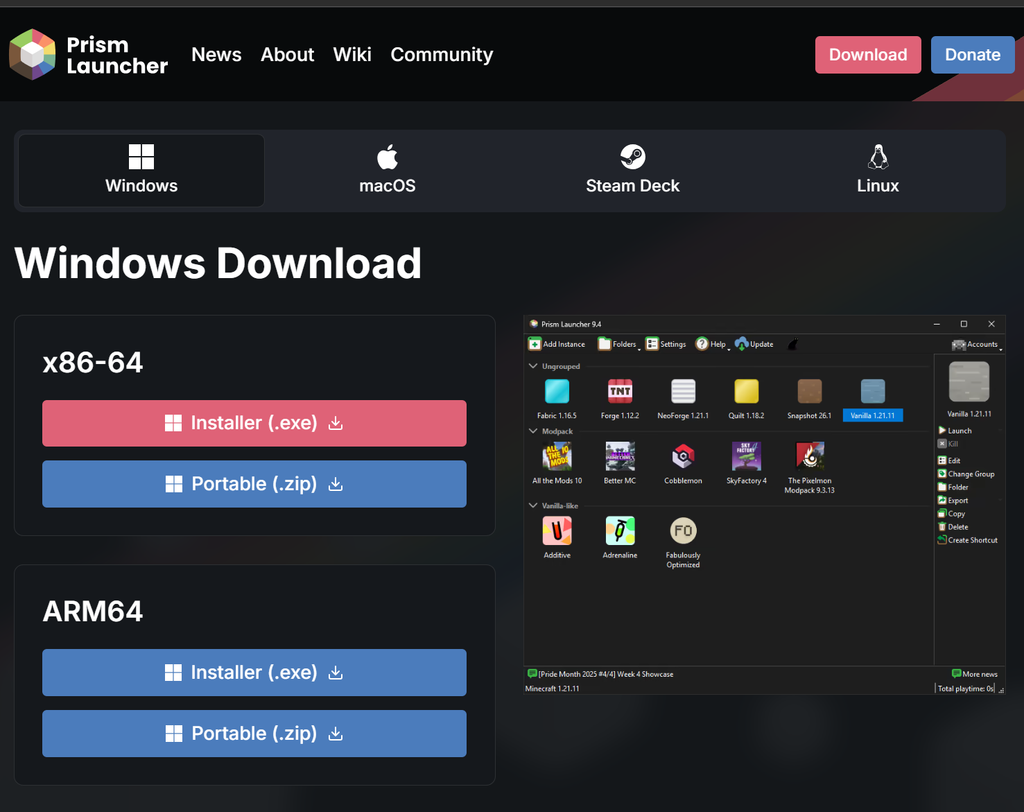
Navigate through the installation wizard, selecting Next until it installs the program. Open Prism. Follow the prompts and select Next until you see the screen below:
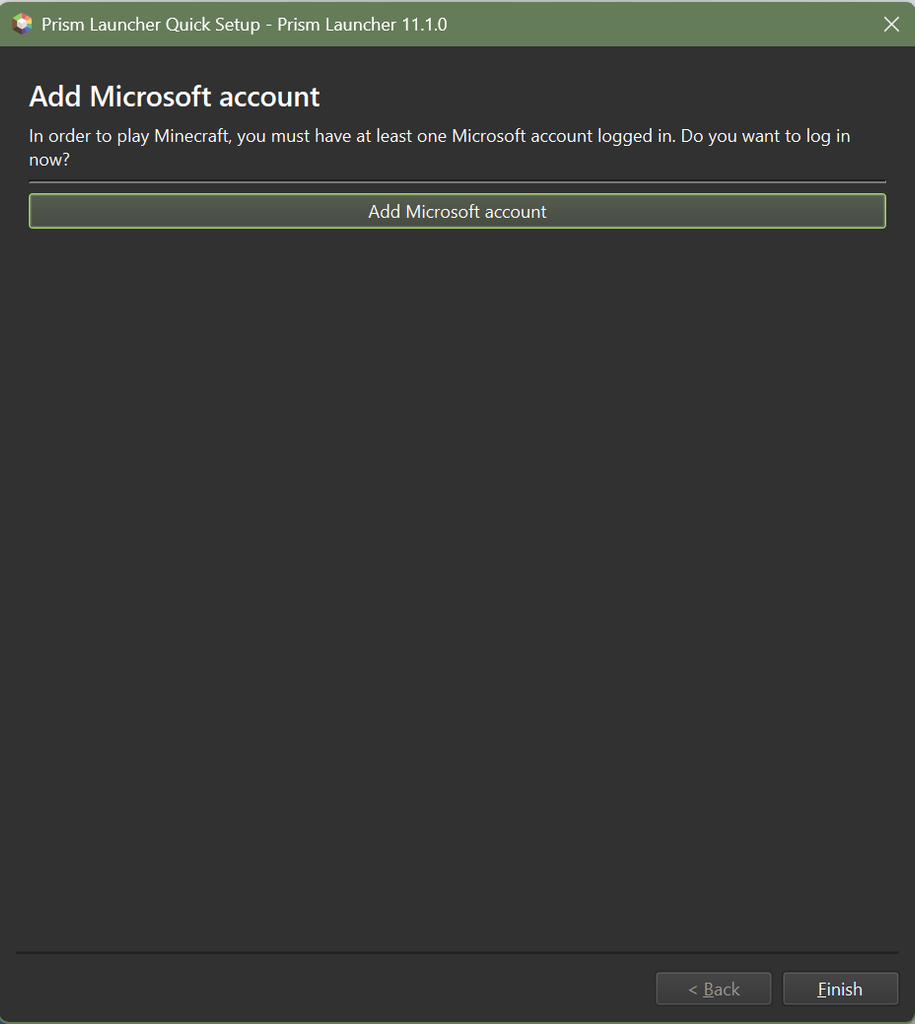
Here you can add your Microsoft Account to sync your skins and capes that are attached to your account.
Next, you should see this screen:
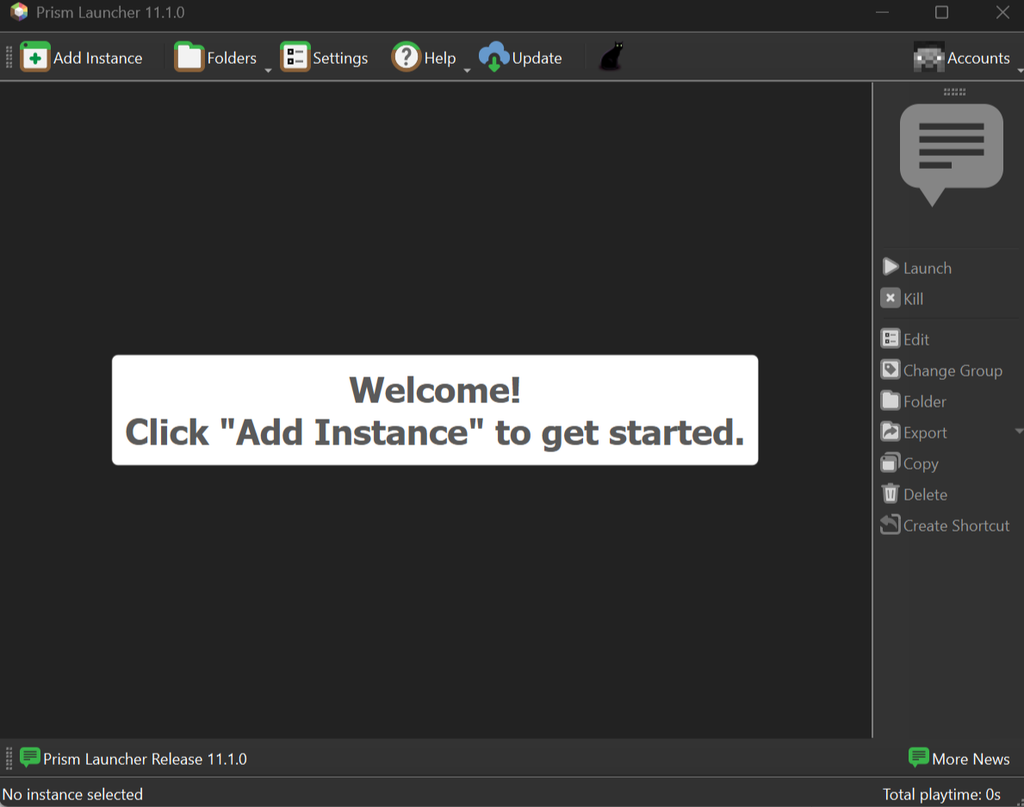
This is your main control panel page where you can manage your account (top right) and later it is where you will see your Minecraft Instances. Prism allows you to have more than one and to group them.
(Hint: You can click the cat icon next to update to get a friend).
Creating Your First Instance
We have simplified this process as much as possible by providing an instance containing the Minecraft Version and Mod Loader for each server as well as AutoModPack.
First, select Add Instance on the top left. It will open the follow screen:
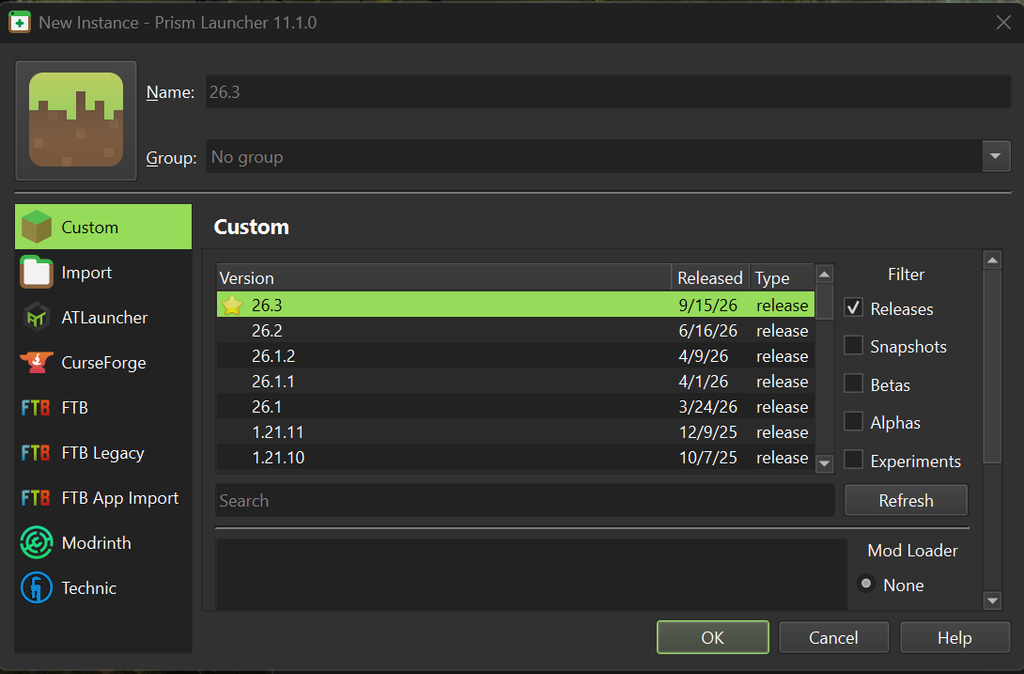
On the left Select Import the window should update to look like:
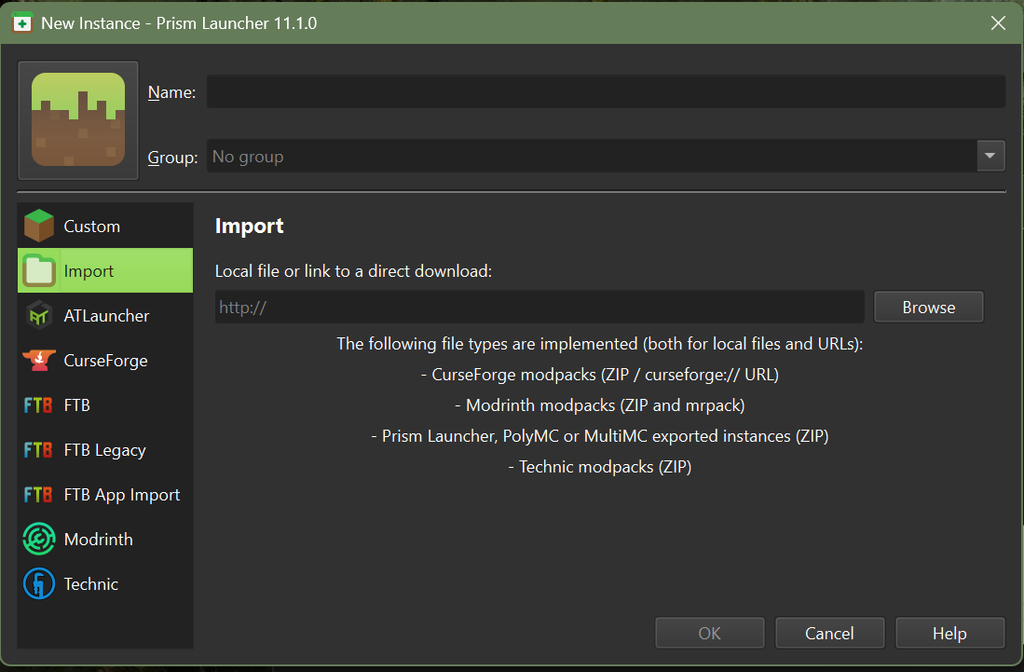
Starting at the top:
You may choose a name for the instance or allow it to autofill with the server name. You may also choose a group if you wish. Simply enter the group name, if it does not already exist it will be created. NEITHER IS REQUIRED.
The box in the middle of the screen (with hint text: http://) is for your import link. Each server has a unique link so check the server specific page (the Vanilla+ Server: Hooligancraft is found here).
Now that you have your Instance you will see it on your Prism Home Screen. It is shown below as Example Test.
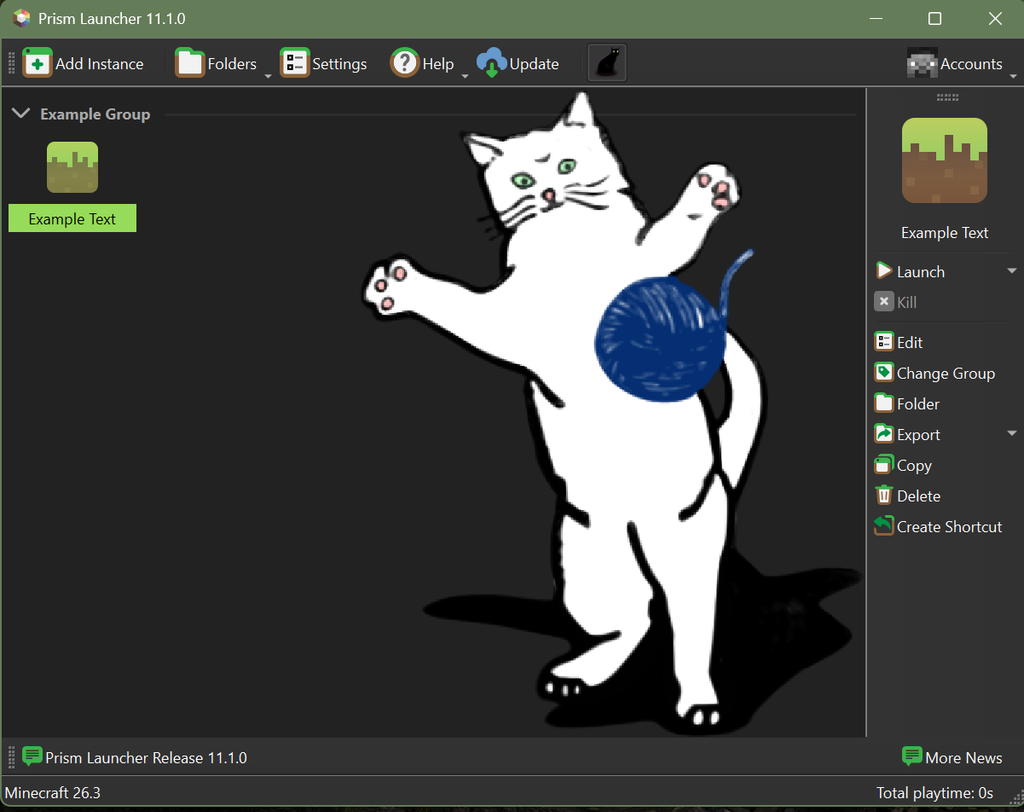
With your instance selected you may to choose to do a few different things.
There is an option to launch Minecraft, which you can also do by double clicking on the instance.
You may also choose to Edit the instance. This will open the following window:
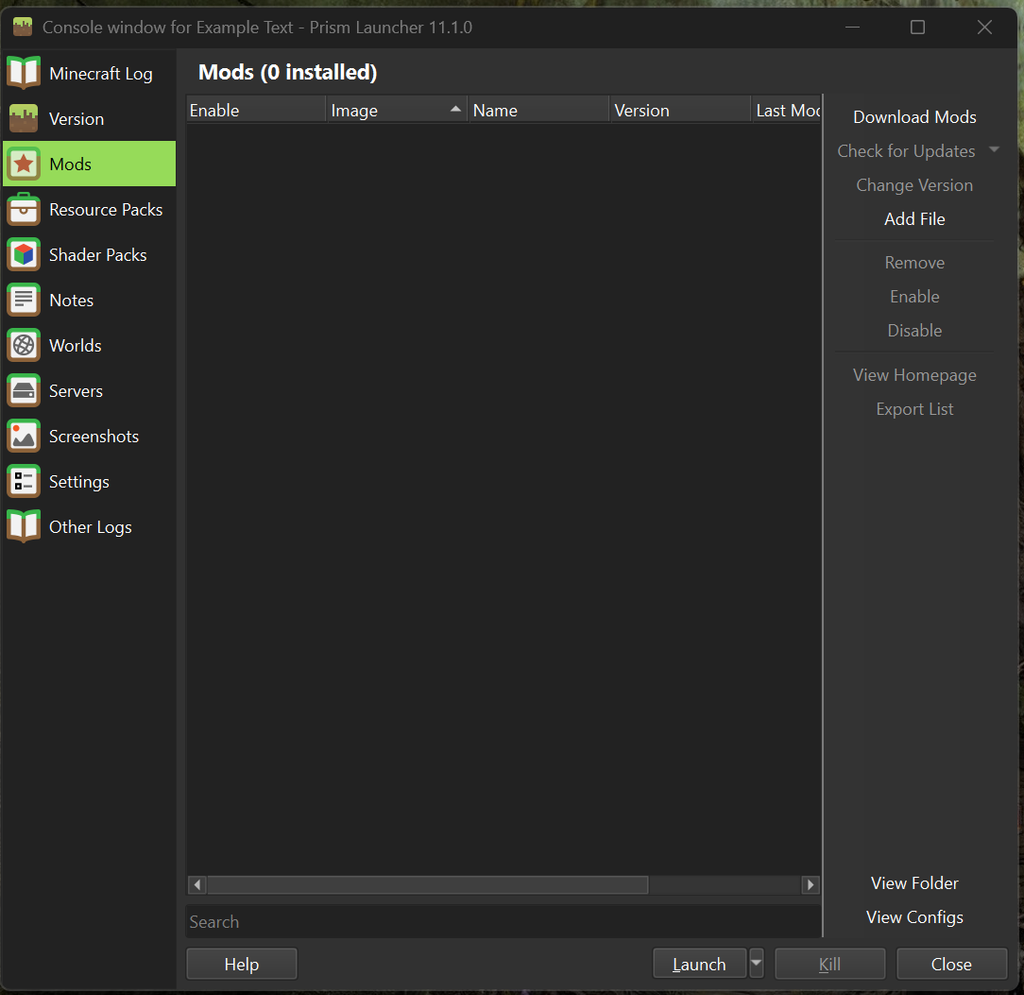
Select Mods from the left list. You should see AutoModPack in the installed mod list (not shown above). It may also have a .index listed, this is part of AutoModPack.
This page will allow you to add optional client-side mods, Resource Packs, and Shaders. However, it is best not to add optional mods until you have let AutoModPack run for the first time (when you first log into the server).
Connecting to the Server
You’re ready to join!
Launch Minecraft and select Multiplayer.
There are two ways to connect to the server:
1. Direct Connect – plug in the server address and hop in.
2. Add Server – set up a quick join option with a custom name.
Which ever you choose to use will require the server address provided on each server specific page (Vanilla+ Server: Hooligancraft is found here).
As you join, AutoModPack will ask if you would like to download the required server mods. There are also optional mods you can enable in the Customize menu.
Once AutoModPack has downloaded the selected mods, allow it to close the game and relaunch Minecraft from the Prism instance as you had before. Reconnect to the server and you’re good to go.
That’s it! Now, play Minecraft.
Stuttering or Laggy Game?
Bigger isn’t always better, especially when it comes to RAM and Minecraft.
If you find your game to stutter or lag, it may help to reduce allocation in Prism.
- First, open Prism and select the Instance.
- Select Edit and Navigate to Settings
- Select Java and check Memory. See example below
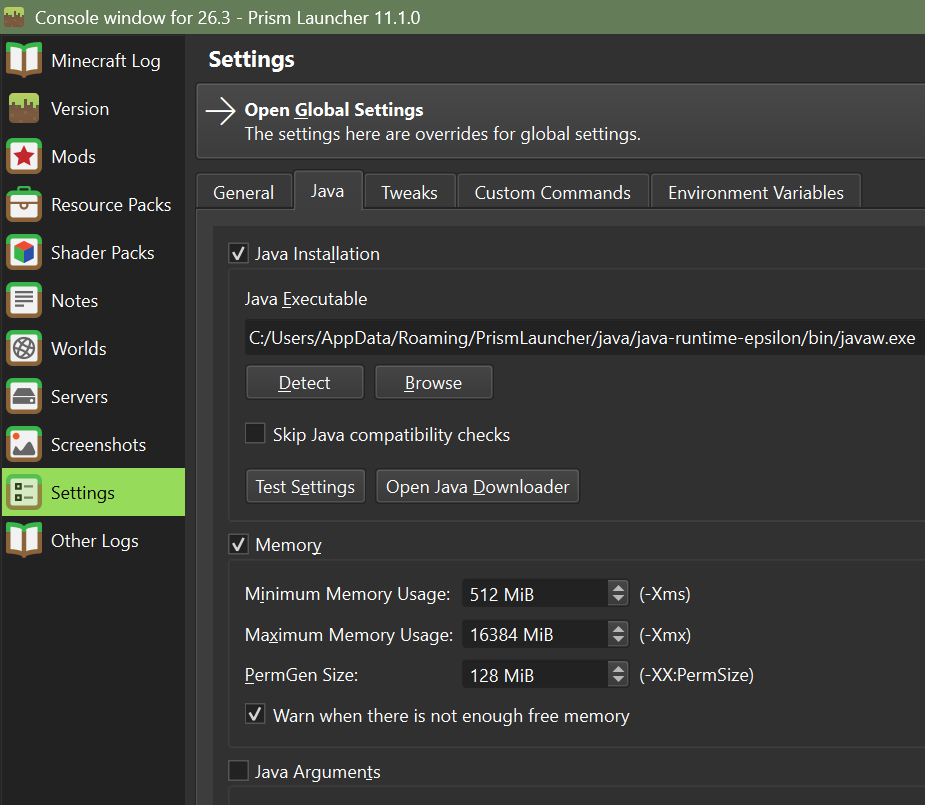
- Enter desired value into Maximum Memory Usage.
Conversion between GB and MiB is pretty straightforward.
1 GB = 1024 MiB
Remember, NEVER use more than half of your system’s RAM.